Live-Link-Hub-Tips---Unreal-Engine-Anima
https://www.youtube.com/watch?v=JdaXti950vg
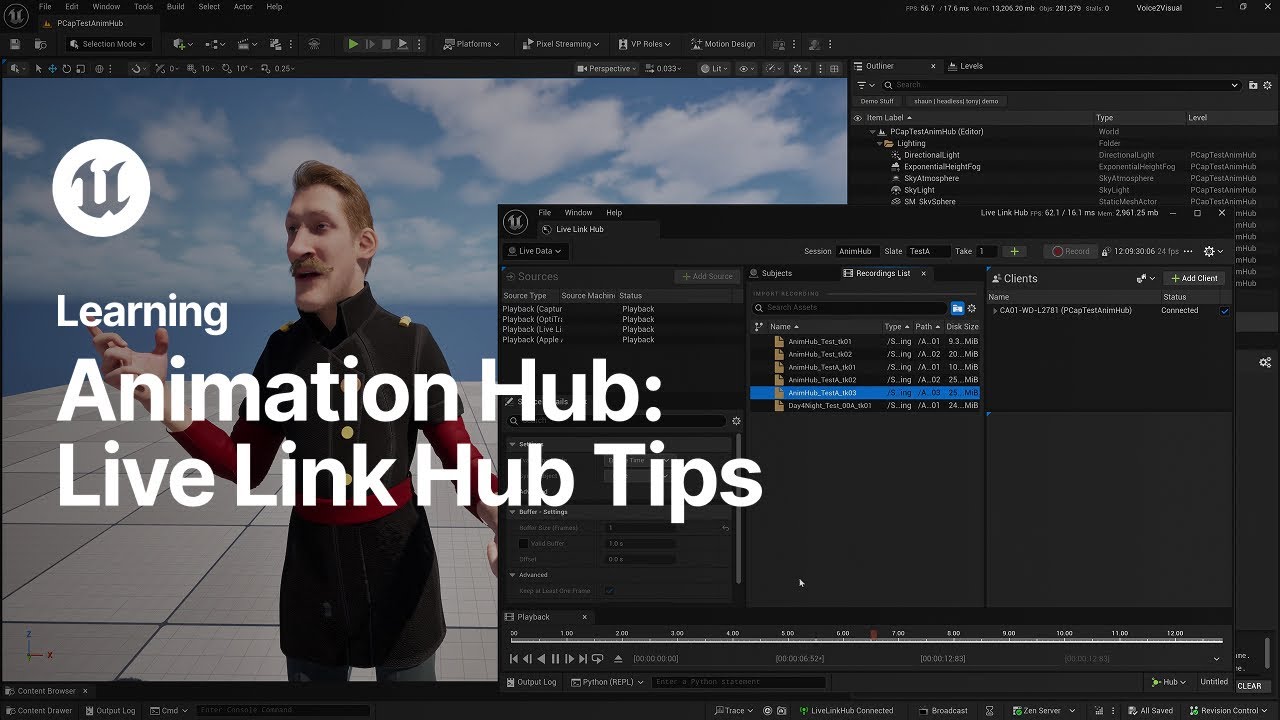
Welcome to the Animation Hub. Today, I'm going to show you some tips for setting up and using the LiveLink Hub to manage LiveLink data. This includes recording data, as well as managing the LiveLink streams that can be sent to multiple workstations. LiveLink Hump is a standalone app. As long as you have the plugin enabled, you can go under the Tools menu and launch LiveLink Hub. Let's have it come up here. So looking at left to right, I can add a source, I'm going to add my Capture body. You can see as soon as I do that, that now I have the subject that is being strained from my Capture system, and this will appear in the editor menu. You can then see on the right, I have clients. other workstations that are on this subnet. There's two workstations that are currently on the same subnet that have the editor launched. This is the one that I'm working with. This is another one, and it'll also tell you what level the other workstation is launched into. So let add some more sources I going to add the OptiTrack so I can have multiple systems come in at the same time OptiTrack here you can see that appears and immediately Live Link and Editor updates And now we're going to add Live Link faced. So in the face, see it looks like it's disconnected. I have MetaHuman Animator running on an iPhone and streaming over Wi-Fi. and just put in the IP of my phone, this Tony face, and go ahead and connect. And just like that, we have Tony face is now streaming and also updated in editor. What's handy with the Live Link Hub is you can also add a virtual subject. Virtual subject then simplifies the process of getting body on face onto a metahuman by combining them together as one live link string. So I have my virtual Tony here. I'm going to go ahead and choose Tony and his face. Combine the two of those as my subjects. You can see now I've gone green. However, you don't see a virtual Tony in Editor. In order to do that, you need to rebroadcast. and just like that I have Tony working and this is my live face speaking to you in real time and bring back the hub Things you can also do once you have a LiveLink setup is you can save your config This will default to the LiveLink content folder So I can save a config, which I already have one here, and recall the setup, including your virtual subject that you've gone through the trouble of creating. Other things to note is there's a plugin directory. So this will show you the plugins that are available and what's been enabled. You can also, if you have other plugins you want to add to the hub, you can add your own directory if your plugins are in a different path. Go ahead and close that. There's also, close that as well. There's also a settings menu where you can update some of the default settings, how LiveLynx starts up. Something to note on the face is I can go ahead and calibrate my neutral pose from the LiveLink hub. When I go ahead, hit my neutral, I'm updating that. You can also note that I don't have the head orientation and translation coming through from the MetaHuman animator because Capture is the driving source of the neck and head bone. I want to make sure as well when I go to the virtual pony, the location and rotation of the head I going to keep the parent which in this case is a capture system So rebroadcasting we have live data in there Now let look at the process for recording So I can go ahead and create a new session name. And create a new slate. That's A. And all these subjects are active. are active so go ahead and press the record button. Starts recording. Yes, this is LiveLink Data being recorded. Body and faith. And then stop. Now that we've made a recording, we can switch to the recording list and double click on our last take. I'm just going to move this up here And you can see we have a timeline here. We can scrub. We can play. One more thing to show you before we finish up is you can actually use your Live Link source. If it has time code as your time code source for Live Link Hub, super useful. Remember, you can see I have system time. Click on the settings there. I can change this over to using the subject name. I'm going to use my subject that is from my OptiTrack system. And you'll note it's gray at the moment. And when I enable it, it turns green, the timecode changes. And now my OptiTrack is being used as my timecode source. And there we have it. That's a wrap.