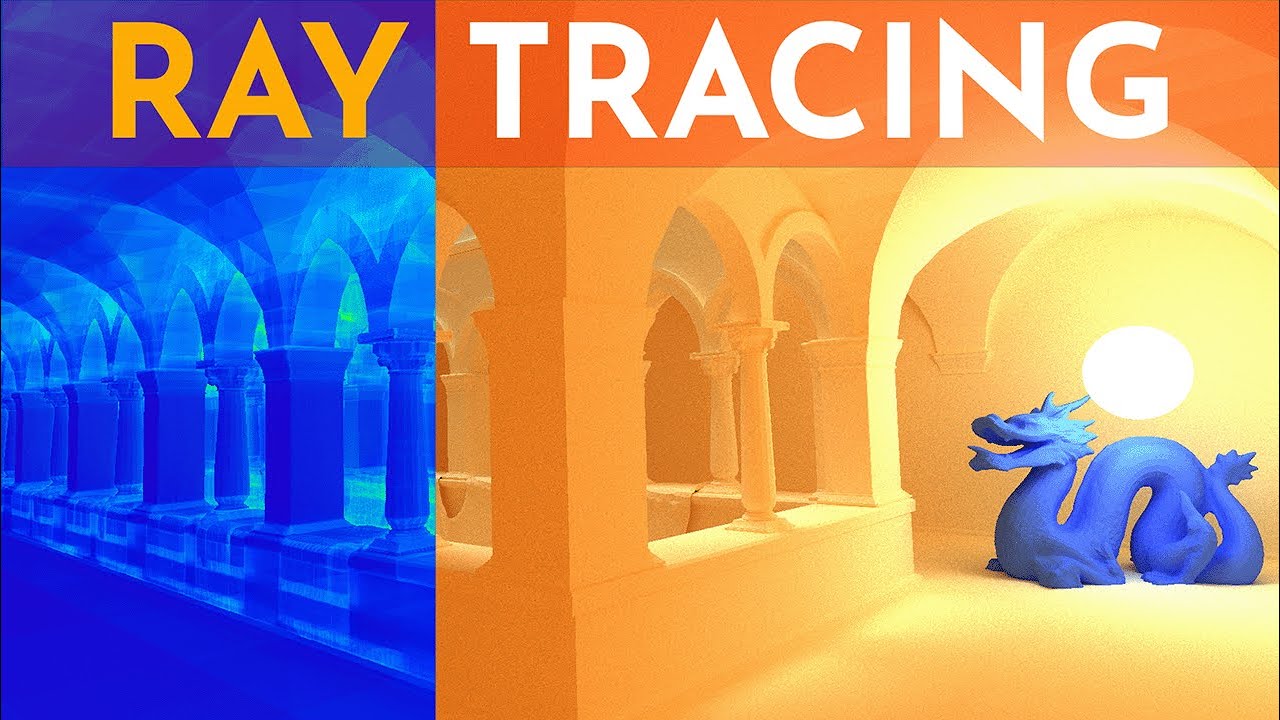
About a year ago I wondered how difficult could it be to build a raytracer, right? Around that time Sebastian Lake released a video on raytracing and I was inspired to say the least. I wanted to make one. So this is how I managed to write a raytracer from scratch going from easily 3 frames per second to rendering over quarter of a million triangles all at once. So what is raytracing? The goal is to simulate how light bounces from objects and based on that you get a super realistic image of the world. In real life, sources like the sun or a lamp emit light rays. These rays bounce from objects and eventually a small portion of them finds a way to our eyes. Then, our brain interprets this light and that's why we can see the world around us. Having said that, sending all of these rays from the sun and tracking which rays hit our eyes is not the most efficient way of doing ray tracing. And that's due to the fact that most of these rays end up missing our eyes. Rather, we could already optimize things a bit if we could shoot these rays from our eyes, let them bounce, and if they were to hit light source, some part of our vision would light up. And that's the idea behind ray tracing. Every pixel on the screen has a ray associated with it. Now, after we've let these rays bounce around, we color the individual pixels on the screen based on the colors of the rays. If the ray bounced off of a red cube and then reached our mighty sun, we would see a red pixel. If on the other hand the ray didn't reach any light, we would just see pitch black, just like in a room with no light. Okay, so my goal with this ray tracer is to make it real time, or actually somewhat real time. And the second goal is to be able to render at full HD, which is the screen size of 1920 by 1080p. That's precisely this many pixels. To make this work, we have to figure out the path each ray takes, and because of the fact that we have this insane number of rays to shoot, I think it's safe to say that ray tracing requires quite a bit of computational power, and thus I had to get creative to figure out ways to make the code run faster. I started with the camera. The core idea behind a camera is this. We have a point in 3D space representing the position of the camera, and from this point originate three orthogonal vectors. By the way, that means that they are perpendicular to each other. They are going in the direction of the three main axes, x, y and z. But wait, what even is a vector? Well, a vector is just an arrow signifying a direction. In computer science, vectors have apart from the direction also an origin. The origin is the starting point of the vector. And the direction shows which way the vector is pointing. So if we take this vector as an example, it has three components, x, y and z. And this signifies that it's a 3D vector. This particular one points in a direction which has 3 units in the x-axis, 2 units in the y-axis and also 2 units in the z-axis. We can do basic operations on vectors like addition, subtraction and multiplication. One useful thing we can do with vectors, and we'll do it a whole lot, is we can normalize vectors. Normalizing means changing the vector components in such a way where the direction of the vector does not change, but its length, or also called the magnitude, shrinks to 1. To calculate the magnitude, we use the Pythagoras theorem, and then when we divide all the components of the original vector by the magnitude, we get the normalized vector. Getting back to the camera, all of these three vectors are normalized, and I'll also give them a name. So this is the forward vector, this is the right, and an up vector. Okay, you see a camera should be able to turn and look at things, And at this point the camera is utterly uneventful, since it's literally just three vectors. There are two main ways how we can rotate a camera. The first one is by using quaternions. Now after glancing at the quaternion math a bit, I figured there is literally no way I'm using those. So that leaves us with the second option, which mainly revolves around trigonometry. The trigonometric functions, like sine and cosine, do exactly what we need. We give them an angle, and they give us back the x and y coordinates of the rotated vector. Now a bit of black magic, which you don't have to understand. We can pack this information into three rotation matrices, and when we multiply a vector with one of these matrices, it will return the rotated vector around the given axis. The order in which we apply the rotations is important. For a typical first-person camera, we first rotate around the z-axis, controlling the pitch, and only then we rotate around the y-axis, controlling the yaw, which rotates the camera left and right. We always perform these rotations when the camera is positioned at 0-0-0 and only after rotating we move the camera to its correct position. I then visualized the rotation just to check whether the camera was working and as always certain unforeseen circumstances occurred. After some time though I got the hang of it and it started to work the way I wanted it to. I also implemented a second type of camera often used in flight simulators. The difference is that when pressing the forward key, the camera follows the precise direction of the forward vector. If we recall the previous camera, even if we were looking up and press the forward key, the camera would move forward. With the second camera though, we go whichever way we are looking. Another thing is that with this type of camera, it gives us the option to control also the roll, which is the third degree of freedom. And this allows the camera to do cool tricks, like barrel rolls. all right now with the camera working we can start focusing on the actual ray tracing part we need to somehow shoot this crazy number of rays from the camera but quite conveniently we can think of rays as just vectors originating from the camera origin before we generate these rays however we need to give the camera two properties the aspect ratio and the fov the aspect ratio is ratio between the width and the height of the screen. Some ratios commonly used are 16 by 9, 4 by 3 or 21 by 9. What about the field of view then? Well, the FOV is this angle. It's basically the angle between the two lines connecting the outermost edges of the screen with the camera. Because of this, the FOV essentially determines the focal length, which is the distance from the camera to the screen. Now if we want to render in full HD and we know the aspect ratio and the focal length, we can easily determine the 3D coordinates of each pixel on the screen. Since we now know the camera's position and the coordinate of the pixel through which the ray is supposed to pass through, calculating the ray direction is as simple as subtracting the pixel coordinates from the camera position vector. After we get this direction we also need to normalize each ray to make the subsequent calculations simpler. But regardless, what we need next is we need to somehow rotate these rays based on where the camera is turning. Remember the forward, up and right vectors? Well, here is the reason why we made them in the first place. We already got them to rotate correctly, so now we can use them to create a local to world matrix, also known as the model matrix, which will allow us to rotate these rays together with the camera. You can treat a matrix as a black box for now, although I highly encourage you to watch the free blue and browns video on linear transformations if you are interested. Anyways, the matrix consists of the rotated forward, up and right vectors, and when we multiply any vector with this matrix, we get a new vector correctly rotated and positioned based on where the camera is at. We need to perform this matrix vector multiplication on each ray each time the camera rotates or moves, so that's a lot of computation we need. In the plot from before I just added the four corners of the screen and fair enough I believe it's working. Let's now turn our attention to the code. I wrote this in Python. The performance is let's just say not ideal. What the code is doing is it calculates the default direction for each ray and then performs a single transformation using the model matrix to rotate and translate these rays to the camera. After running my terribly inefficient code it It took Python almost 18 minutes to crank out a single frame. At this point, I decided to switch to C++. To make things a bit less boring, instead of rendering a black screen, let's just set the color of the pixel to be the direction of the ray going through it. The key thing is that the rays are normalized vectors and have three components, X, Y, and Z. In the same way, RGB values also consist of three numbers, So a ray going exactly in the plus x direction would be red because the x component, or the r component in RGB, is 1, and the green and blue are 0. One edge case we need to address is that RGB values can only be positive numbers. So each time the components are negative, I'm just interpreting their values as a 0. With that out of the way, let's see how this will look when we do this to all the rays at once. To begin with, I've positioned the camera to face in the plus x direction, which as we've discussed a while back, should be red. If we look to the left, we are now looking in the plus z direction, which is blue. And if we turn our heads along the y-axis, we see a whole lot of green. Anyways, as we look behind us, we see this black region, which corresponds to the space where all the three axes are negative. On a related note, if you by any chance noticed the top left corner of the screen, we are reaching around 25 frames per second. I know this window is significantly smaller than the Python one, but even in Full HD I was having around 3 frames per second. That being said, I'm still not satisfied with the performance. Who would have guessed that a graphics card would be good at rendering graphics? Well, I scarred the internet and came across OpenGL. The role of OpenGL is to allow the CPU, the central processing unit, to communicate and give instructions to the GPU, the graphics card. You see, up until now, everything was running on just the CPU and we had that huge for loop running for each of the over 2 million pixels and calculated ray direction there. The thing is, each ray is independent from one another, so the idea is to process multiple rays in parallel and by doing so we could potentially achieve significant speedup in performance. But how can we do that though? Well we could do this on the CPU, but the CPU has only so many cores. The graphics card on the other hand is a much better fit for this. A program which runs on the GPU is called a shader. Shaders can be written in many languages, but in the case of OpenGL they are written in the OpenGL shading language or GLSL for short. It's pretty similar to C++ but regardless if you play any sort of graphically intensive game your computer is most likely running these shaders under the hood. Having said that there are many types of shaders each serving a different purpose one of which is the fragment shader. A fragment shader also called a pixel shader is the one we are the most interested in because its role is to draw individual pixels on the screen. What we'll be doing is essentially we'll be running a boatload of these fragment shaders all at once. So I had rewrite some of the code to fit inside this new fancy fragment shader, but let's be honest it's pretty bare at the moment. All the shader is doing is it only cares about a single ray, so we no longer need the for loop from before. It transforms the rays using the model matrix and then outputs the non-negative color based on the rays direction, which is exactly what we were doing before, but this time is done in parallel on the GPU instead of a giant for loop on the CPU. While on the subject, the creation of race is still handled on the CPU because that only needs to be done once upon the start. But enough about that, let's see what we have so far. Ok, holy crap, I didn't think it would be this fast. And this is full screen by the way. Again we see X, Y and Z correspond to RGB and there is again this black region where all of the three axes are negative. One thing I found pretty cool was when I increased the field of view to around 180. down so it almost hard to tell which way we are facing right now actually scratch that it impossible to tell But we get to see this nice blend of colors It worth noting that I running this on a fairly mid GPU I have the NVIDIA GeForce GTX 1060 in a notebook, so it tends to be on the warmer side. But hopefully it should suffice for our little experiments. I think it's time we finally render some shape. The simplest one to start with is the sphere. A sphere can be defined by only two variables. its origin, which is the position of the center of the sphere, and its radius. In the fragment shader what we need to do is to somehow check if a ray shot from the camera hit any objects in the scene like our set sphere. So I've added a function to check for these ray sphere intersections and I actually used one from Sebastian's video. You should check it out by the way, he explained it wonderfully. The function cleverly returns a hidden postract which provides as with some useful information about the intersection, mainly whether the ray hit the sphere or not, and then if it did, we get the distance from the ray origin, the hit point, which is the coordinate of the hit, and also the normal vector, which is the vector perpendicular to the surface of the sphere. For the moment, I want to keep things as simple as possible. So if the ray hit the sphere, I'm just setting the color to white, and if it did not, we get black. I've positioned one sphere right in front of us, so it should be impossible to miss. And I know this might not be the most thrilling part yet, but we are actually just laying down the groundwork and honestly I'm quite happy that it works the way it does. Let's proceed by handling multiple spheres. Here I'm creating a bunch of them, for now at least I'm making them in the fragment shader directly, but later we'll be sending them over from the CPU. In any case, we need to loop over all the spheres and check the ray-sphere intersection. Additionally, we also need to keep track of the closest sphere we've encountered so far and subsequently display this closest one to the screen. We do this to prevent the distant spheres from appearing in front of the closer ones and we use the distance variable from the hidden info struct to keep track of that. With that in mind, let's test our new code. It looks like it's working at least, but to be sure that the distant spheres are not occluding the closer ones, I'd also like to specify the color for each one separately. So I've given the sphere struct a color variable, and we are updating this color each time we find a new closest intersection. Okay then, let's see the colors. Well, it's still not exactly fireworks, but at least we are on the right track. But now, let's take a step back from the computer altogether and think about how things look in real life. Everything is made out of some sort of material. Surfaces may look smooth, but if we zoom way in, every material has some kind of roughness. There is no such material which is completely flat. We can, though, find materials which come incredibly close to this perfect smoothness. A water surface, among others, is a prime example. Now, a crucial property of light, and this really is the main idea behind ray tracing, is that light bounces at exactly the same angle as it hits the surface. If we take a smooth material like the water surface, because of the fact that it's so smooth, the light bounces off in a very organized way. This is the reason why we see all those beautiful reflections. We call this specular reflection. The thing is, not every surface is as smooth as the water surface. In fact, most materials have tons of microscopic bumps, and therefore the light hitting them scatters in seemingly random directions. Just keep in mind that the light bounces at exactly the same angle as it hits the surface, it's just the surface itself that's very rough. Now, for reflections of this type, we use the term diffuse reflections. For now at least, I'll stick to this type. Another key point to mention is that the color of an object determines which wavelengths of light get absorbed and which get reflected. For instance, an object, which we perceive as blue, is blue because it absorbs all the red and green wavelengths, while still reflecting the blue ones to our eyes. A white object reflects all the wavelengths, while a black object absorbs them all. That's the reason why black surfaces heat up significantly faster in the sun as opposed to white ones. It's because they absorb sun's energy and turn it into heat. Alright, so till this point we've just stored the color of an object, but let's now give our sphere a material instead. To begin with, I've moved the color to the material's tract and we'll put more things in here shortly. Okay, and here is the heart of ray tracing. It's a bit more complex than a light switch, but then on the other hand, I want to see something more interesting than just four dots on the screen. So, remember, in ray tracing, we trace the rays originating from the camera with the hopes of the rays reaching some sort of light source. When we are initially sending the ray, what we do is we set the ray color to white, essentially sending all the wavelengths of light, and the idea is to bounce the ray multiple times. So for that reason we create this for loop in which the whole ray tracing will happen. In the loop the first thing we do is we check for collisions and if there are none we break out immediately. When the ray happens to hit something, perhaps a blue sphere, the principle about light absorption from earlier applies. In short, only the blue wavelengths get reflected. And programmatically to do this, to get the color after the bounce, we multiply the ray's color by the object's material color. The reason that this works is because multiplication of vectors is done by multiplying the individual vector components together. And here we get to another important thing to mention. And that's that colors in GLSL range from 0 to 1. That basically guarantees that when we multiply two RGB colors, we can never get in any color channel a number exceeding 1. Okay, so with that we know the new color of the ray and the position where it hit the sphere. And that's stored in the hit info struct over here. What do we do next? well, we want to bounce the ray again, right? So we treat the hit point as the new ray origin from which we'll send the ray from next. I've mentioned this briefly, but for now we'll focus on the diffuse reflections. What that essentially means is that all we have to do is to just pick a random direction in hemisphere to send the ray in. I'm not going to go into too much detail as to how to generate this random direction, but the one thing I will mention is that we need to choose a point in the hemisphere facing away from the sphere to avoid the directions which point into the sphere itself. And that's because the ray has to bounce away from the sphere for it to make sense. And now, since we have the new ray origin and the new direction in the loop, the code should repeatedly perform these bounces as many times as the loop allows it to. Now, this is not the whole thing, yet. But we are almost there. In our example, we've established that the color of the pixel should be blue, since the ray struck a blue sphere. The question now is, how bright should the pixel be? To figure this out, we have to add two new variables to the material struct, namely the emission strength and the emission color. We haven't discussed this yet, but we have still not settled on what we consider to be a light source. Well, here it is. If a sphere or actually any shape has this emission strength greater than zero and the emission color is not complete darkness, we'll consider it a light source. This means that when a ray hits a light source, it should increase the brightness of the ray. So let's backtrack a second. To figure out the final pixel color, we need to track not just the race color, but also its brightness score. The brightness score starts out as a zero vector. Now in code it is a vector, but actually the brightness score is telling us what the final color of the pixel should be, so actually it's an RGB color. Starting out it's pitch black. Now what we need to do is at each intersection we first calculate the emitted light of the object which we are currently colliding with. done by just multiplying the object's emission strength by its emission color. Then we add to the brightness score the ray color multiplied by the emitted light of the object. Essentially what we are doing here is we have this ray which has a color. We are tinting the light emitted by the spheres by the ray color and after each bounce we are accumulating this tinted light in the brightness score. Finally after our ray has reached the maximum bounce count or when we we break out of the loop because we didn't hit any object, we just return the brightness score as the final pixel color. Ok, that has been quite grand, but it's finally over. Regardless, I really want to see how the spheres look now after implementing all of these changes. Alright it seems like nothing has changed, but currently what's happening is we are not allowing the ray to bounce at all, which means that now we are only seeing just light sources. If we allow the ray to bounce once, well it's already a lot more interesting, isn't it? We can see that parts closer to the source are lighter because the rays end up hitting the light source more often. The image is quite noisy though, so let's increase the number of rays we send each frame. In code I've put the trace ray function inside this loop and done here we are averaging the results. Of course this comes at a performance cost since if we send two rays we are essentially doing double the work. Having said that, this is the same scene but with 5 rays per pixel. And this is 20. The thing is, we are still allowing the rate to bounce just once. So let's increase that number. Here is the same image but with 2 bounces. And here with 5. The difference gets less noticeable the more bounces we allow. So here is 20 for instance. Now a bit of a brighter idea, instead of frying the computer already, would be to accumulate the results among multiple frames. So the idea is this, we will create two textures, one to which we'll be drawing to and another one to sample from. Each frame we swap their roles so if we were previously drawing to texture 1, the same texture will serve as a base for the next frame. This will allow us to keep the number of rays per pixel low while still having a clear image over time. Of course this only works as long as the camera sits still, so each time the camera moves we have to start the accumulation all over again otherwise this would happen. With that little wrinkle ironed out one might even say that it looks good and personally I think it looks decent. the thing I like about this approach is that we are not losing any interactivity speaking of interactivity the next thing I want to focus on is creating some sort of UI or user interface I'm a bit tired of constantly having to rewrite the code every time I want to change something. For this I used a C++ library called IMGY which is perhaps the only library which didn't require a week of cursing to get working so it was perfect for my one-man operation. So after some tireless work we have a scalable viewport window. This happens to be quite handy actually because if we ever need to temporarily increase the performance we can lower the resolution by simply shrinking the window. Additionally, all the windows are dockable, which again is a brilliant feature of IMG UI, so I can now tailor the UI layout to my liking. I added this performance window where I can see the frame rate and also the milliseconds per frame, which by the way is a much better metric for measuring performance. Apart from that, we have all of these settings over here. We can control the camera position and rotation, and right under that we can also change the FOV and aspect ratio. I made it possible to bind arbitrary keys as the camera input, though I guess it's just there, I've never actually used it. And then we can also set the camera's speed and sensitivity. When it comes to ray tracing, we can now change the number of rays per pixel and the number of bounces per ray, and we can also toggle on or off the accumulation. This fancy button is just a placeholder for now, so we actually don't have any post-processing yet. Aside from all of this, we can now easily switch between the camera relative and world relative camera types. Right, so let's try the barrel roll. Well that was underwhelming but nonetheless let rewind a bit and perhaps focus on how we can make the renders a bit nicer You see I feel like the black void is just not the most inspiring So what I want to do is I want to implement some sort of skybox Right now, if Ray misses everything, we just get a black pixel, and that's because we are just breaking out of this loop. Well, what if instead we gave the Ray some kind of additional brightness, as if it got some light from the surrounding environment? Simply said, whatever color we put in here, and then multiply it with the Ray color, will be the background color for that pixel. So this is all subject to change. It's just a simple skybox for now. Though I think this is a big improvement from the void we had before. It gives some depth to the areas which otherwise would not receive much light. This has also the added benefit of the colors being more consistent in my opinion. Having said that, we can still see some red color reflected onto the yellow sphere which I'm thrilled by because this shows that our ray tracing logic is working. Achieving something like this with traditional rasterize methods would be close to impossible. Well, the next thing on my bucket list is to move on from the boring spheres and render something a bit more interesting. How about an arbitrary shape? Yeah, that sounds interesting. So, as it turns out, mostly everything in computer graphics is made out of triangles. So, of course, the first step is to implement them. As scenes usually contain an insane number of triangles, I searched for the fastest possible algorithm to check for the ray triangle intersections. What I discovered is that most ray tracers use an algorithm called the Moliere-Turmbor ray triangle intersection algorithm. I found its implementation on Stack Overflow and to incorporate it to the ray tracer, it's really quite straightforward. A triangle, by the way, can be defined by just three points, but apart from that, I've also given the triangle three normal vectors, which help us decide which side is which, and lastly I've given it also the same material as I gave the sphere. Now, to render a triangle, we do exactly what we did with the spheres, but we use this new intersection function instead when checking for intersections. For now, let's render just a single triangle. I typed some random numbers for the color, but you know what, it's unremarkably fine. A triangle is just a triangle though, and my goal is to render an arbitrary shape, so how about we send a few hundred triangles to the GPU, and hopefully we'll see something more compelling. Okay, we see something, but wait, all I freaking see is lag. So, clearly, I need a better computer. Well, not exactly. We can do many things to improve this. Here's the deal. Fragment shaders are handy within the graphics pipeline, but there's only so much we can do with them. I haven't talked about this, but fragment shaders can only color pixels of triangles. And to make the fragment shader to function at all, I had to have a vertex shader running in the background, and the role of the vertex shader was to generate two triangles. These two triangles were used to form a quad of the shape of the screen, so that the fragment shader could draw onto them. Overall, there were many additional things to do with this approach, and why am I even complaining about this? Well, there is actually another way. Compute shaders. Now these guys, they are a completely separate thing from the graphics pipeline. They have no connection to it whatsoever. They are literally just programs which run on the GPU and utilize its parallel nature to do things incredibly fast. People say that compute shaders are confusing, but I don't know what the fuzz is about because in my opinion they are literally simpler than having to deal with the graphics pipeline. So switching to a compute shader in the case of ray tracing made a lot of sense and simplified the code on the CPU a lot. It did take absolute ages to rewrite though, since there was quite a lot of code already. In regards to the performance, it has improved a lot. I mean, it almost seems like we doubled the performance. Okay, with that out of the way, I have another quite powerful optimization in mind. But before we do that, just a quick reminder on how we render the triangles. Each time we send a ray, we first check every sphere and then every triangle for an intersection. For a small number of primitives in the scene this works. But if we analyze our current scene, we have 4 spheres, there is actually one hidden down below, and then we have 228 triangles, that's our pine tree. So if we do the math, that's a total of 232 primitives in the scene, times 1920 by 1080, which is the screen size, times 1, that's because we are sending 1 ray per pixel, times 5 or actually up to 5, because we can bounce the ray multiple times. Okay, so that gives us 2.5 billion intersection tests each and every frame. Now imagine if we want to render this at 60 frames per second. The biggest question now is how can we optimize this number? Well, if we want to keep the same resolution and the number of bounces, the only thing we can really improve is the number of intersections we do. So let's first think about what would happen if we put the tree inside the box. If we then send a ray and check for the intersection with the box first, yes, we do one more intersection test. However, if the ray misses the box, we know we are done. So essentially, all of these pixels only do one intersection test instead of 228. Let's take this concept further. What if we took what's inside this box and again divided the triangles into two boxes? Suddenly, even if the ray hits the first box and the second one, we essentially skip the second half of the tree altogether. And these boxes actually have a name. They are called AABBs or Axis Aligned Bounding Boxes, since their sides are aligned with the three axes x y and z. And in fact this entire structure of boxes inside boxes also has a name. It's called the BVH or the bounding volume hierarchy. If you take a look at any series ray tracer they have this implemented no questions asked. If we want to experiment with slightly larger scenes with a few hundred thousand to even millions of triangles having a solid BVH is probably the most important piece of the puzzle. So where do we even begin? Well, I went back to my trusted Python. The first thing I did was to generate some random points. A BVH consists of nodes. Each node contains an ABB, you know, the axis line bounding box which we've mentioned, and each ABB is defined by its top left and bottom right corners. The top left corner is the minimum vector, while the bottom right corner is the max vector. The names are self-explanatory. To find the minimum vector we look through all the points and keep track of the minimum x and minimum y value. In this case just x and y because we are in 2d otherwise we'd also need to keep track of the minimum z value. We do the same with the max vector but we track the largest x and largest y value. So at this point we know how to construct an AABB if we know the points which belong to it. The question now is how do we determine the AABB which the given point should belong to. We use notes and a splitting strategy, which we'll discuss later. For now there are two types of notes, leaf and non-leaf notes. For starters you can think of the BVH as a tree. A node which is higher in the tree, we call it the parent note of the notes directly under it. And these notes under the parent note are considered to be its child notes. The top note, also called the root note, is the note which contains all the other notes within. Essentially, it encompasses the entire object. As I mentioned, we differentiate two types of nodes. Leaf nodes are nodes which are at the complete end of this tree. Now, this is very important. They contain the triangles or the primitives. I mean spheres, squares, whatever. The other type we have are non-leaf nodes. These only contain references to other BVH nodes and practically serve as a bridge to the leaf nodes. The goal is to split the object into these progressively smaller boxes so that when we reach the leaf node we only need to check one to four triangles in most. So to make this clear every single non-leaf node contains an ABB. Depending on the node if it's a non-leaf node it's comprised of the references to other BVH nodes and if it's a leaf node it contains the primitives like the triangles or the spheres. Alright so I began by creating a root node with an ABB which covers the whole screen. I then took what's inside this node and split it in half and we are finally getting into how it's done. So one method we could use is called the midpoint split. The idea is simple we have this AABB and we split it along its longest sides deciding which points go in each half based on their position relative to this midpoint. In my initial experiment I tried to repeatedly split these BVH nodes until there was only one point in the bounding box and this was the result. This looks correct to me but the thing is this only handles a handful of points. To deal with the rest, we need to use a data structure known as a stack. This might be a bit confusing if you've not worked with a stack yet, but the high-level overview is this. The stack works on the last in first out principle. Think of a stack of pancakes. The last pancake edit is the first one you'll eat. Alright, so the entire process begins by putting the root node inside the stack. So the first and only node inside the stack now is the root node. The next thing we do is we take this node and split it using the midpoint split into two child nodes Then we place the children nodes into the stack and while at that Since we've taken care of the root node we can now safely remove it from the stack We then again take the first node in line and after splitting it we put its children nodes into the stack After repeating this process a bunch of times we'll end up having no nodes in the stack That means that we are done Now you might be asking when do we stop splitting the BVH nodes Well, the thing is, we only put non-leaf nodes into the stack. So once a node only contains 1 to 4 triangles, meaning it's a leaf node, we stop splitting it further. Now, in my experiments, instead of just splitting points, this time I generated triangles. And that forces us to do certain things slightly differently. Firstly, if we want to determine the minimum and maximum vectors of a given ABB, we need to iterate over all of the vertices of the triangles. And secondly, to determine the site to which the triangle belongs to, we need to calculate the centroid of the triangle, and that's done by simply averaging the three vertices together. After doing so, we get a point, in this case it is the green dot in every triangle, and this simplifies everything by a lot. It's essentially the same as with the points from before. So, so far we have figured out the BVH construction, and it's quite mesmerizing honestly. But what was the point of having a BVH in the first place? Well, we needed to implement a fast way to search for triangles. So the goal right now is that when I hover over a triangle, it will change color or perhaps be outlined by some sort of a box. So to begin with, I'm just checking if the position where the cursor is, is within the root node. Remember, each node contains an AABB with a min and max vector, and as long as the X and Y of the mouse is within that range, we are intersecting the box. Next, we'll again use the stack. The idea is to repeat this process of checking if the coordinates of the cursor are within a BVH node, which we are currently exploring. And here is the reason why we use the stack. We need to keep track of all of the branches, which we have not yet visited, to get back to them later. So for that reason, we always push the new nodes onto the stack. Essentially, we are solving a typical coding interview question. We are doing a depth-first search, looking for a node in the tree, which intersects the position of the mouse. Okay, this is really quite satisfying to me. You see, now instead of having to check all of the 5000 triangles, we check just a handful of boxes and a few triangles and we are done. It's important to say that in a BVH the individual AABBs can overlap. And in the unfortunate case where we hit both of them, we have to search them both. At this point I moved on to C++, just to grasp how this might be written. And the results were quite similar, it just ran a bit faster. Actually, a lot faster. Alright, all of this is great, but I finally want to move on to 3D. For the BDH construction, all I had to do was to add a third Z component to the AABBs and make some minor adjustments to how I was splitting the triangles. When it comes to the traversal, the main talking point here is the intersection function. In 2D, we had just the mouse cursor, but in 3D we have to check for ray bounding box intersections instead. Conveniently, some smarter people already found a pretty fast way to check for this kind of intersection and they called it the slab method I leave a link to the article if you are interested Nonetheless here is the function I used One unexpectedly annoying problem was actually how can I check whether this whole darn thing is working? You see, if something went wrong, which it did many times, I had no idea whether it was something with the construction or the traversal that was causing the problems. For that reason, I wrote another visualization, again in Python. At first I tried one of the simplest shapes I know, the tetrahedron consisting of just four triangles. By the looks of it, it seems to be working. Just out of curiosity, here is the pine tree from before. Now, getting all of this working was by far the hardest part of the project. I mean, the GPU is just a pain to debug and the part that was causing the most problems was actually sending the BDH and the triangles to the GPU. In the end I managed to get it working, so let's check it out. It's quite a significant improvement. At some points I can see 400 frames per second. Now this all depends on how far from the tree we are, because the smaller the tree, the smaller the box, the less intersections we need to do. Okay, I think the raytracer will be able to handle a lot more triangles so here's the Stanford bunny consisting of around 5,000 triangles. I also want to show you the Stanford dragon. This one consists of around 20,000 triangles. The Stanford dragon is one of my favorite models to the point where I actually 3D printed one in real life. But there is still one more thing I want to talk about when it comes to the BVH. Let's talk some more about the different ways we can split the triangles into a pair of AABBs. This can significantly improve or worsen performance. If we construct a bad quality BVH where the AABBs overlap a lot, we have to perform a suboptimal number of intersections. So, so far we've used the midpoint split, right? It's the simplest one, we just find the longest side and split it in half. It works but sometimes you end up with weird splits and empty space, so overall it's not the best pick when it comes to performance. The second way how we can split the AABBs is by using the median split. Here we again find the longest side but this time instead of splitting the AABBs exactly in the middle, we instead calculate the centroids of all the triangles and we sort the list based on the axis with which the longest side is aligned with. Now that we have the sorted list, we pick the median value as the splitting boundary. Median, if you are not sure, is the value in the center of the list, so there should be an equal number of elements to the left and to the right of the median. When we compare the midpoint and median split, the difference is quite apparent. If we have ununiformly distributed points, the midpoint split can often put many triangles on one side while putting just a few on the other, and this leads to an unbalanced BVH tree. Our goal is to keep the tree as balanced as possible. So in the same scenario, the median split would split the triangles like this, putting a similar number of triangles on both sides. On average, the median split performs a tiny bit better, but now let's talk about a split method which I'm the most excited about. It's called the surface area heuristic. Currently, most of the best algorithms for building acceleration structures for ray tracing to some degree revolve around the surface area heuristic. I have read some interesting articles about this and I'll leave a link down below. It seemed quite tough at first, but after taking a closer look, it's quite straightforward. The idea is simple. Each split will have a computational cost. The surface area heuristic uses an equation to calculate this cost. Alright, so what in the world is this equation about? Well, the idea is to approximate the time it would take our computer to search for a triangle when using a particular split. We basically try many possible splits to divide the triangles into two groups. We compute the cost for each and then choose the one with the lowest cost and that will be our split. To better understand this equation let's divide it into more digestible segments. So this part it's all about figuring out how long it will take our computer to check all the triangles squished inside one of those AABBs. We've got this thing, T isect i. This tells us how much time we need to perform the intersection test with a primitive, where this i over here is the index of the primitive which we are intersecting. You can think of the T isect as a function to which we pass the index of the primitive and it returns the time it would take to compute the intersection. This n over here is just how many primitives are crammed into the given AABB. I'm saying primitives because our BVH can potentially store spheres, triangles, cubes or even other BVH trees within. What about this weird looking symbol? It means that we are adding stuff up. What it's doing is it sums all of the individual times it takes to perform the intersection test on all of the primitives within the AABB. If we zoom out we can see that we have this twice in the equation. That's because we are trying to divide the parent AABB into two children AABBs. So there is one for each child. The PA and PB are probabilities. The PA tells us the chance that when a random ray intersects the parent AABB that it also intersects the child A within it. And PB does the same thing but with the child B. Now to compute this probability it's actually a lot simpler than it seems. We just calculate the ratio between the surface area of the child AABB and the parent AABB where the surface area of the bigger box the parent AABB is at the bottom and the area of the smaller box is at the top. And this is the reason why this whole thing is actually called the surface area heuristic. The last bit of mystery in this equation is the t traverse. This is the time it takes to determine which of the children AABBs the ray passes through. For the most part we can kind of neglect this as it is a constant and in the code I hardcoded the value to be 0.1 to 5. Alright, so this is the equation which is commonly cited but in practice we don't calculate the sum of the intersection times. Hear me out. See the thing is checking a ray against a sphere or a plane might take a bit less time than with a triangle for instance but this added complexity really doesn't affect the performance that much. So for the most part we can ditch this part altogether and just count how many shapes there are cramped in the box. This simplifies the overall equation quite a bit. Okay so we now know how to calculate the cost of a split. So here's what we have to do next. Again, we find the centroid of each triangle and this time we iterate over each axis, x, y and z. We then sort the triangles based on their centroid's position along the axis we are currently considering, similar to what we've done with the median split. Next, we imagine splitting the triangles into two groups. We test every possible centroid as the split point and calculate its cost. And then finally, the split, which gives us the lowest cost, ultimately wins. In practice this works but the build time is a major bottleneck. Just think of it, a million triangles means roughly three million cost calculations for just the first box and we repeat this many many times until the boxes are just small enough to fit two triangles. For smaller models this works but forget about loading anything larger than 50,000 triangles. To get around this instead of iterating over all the possible splits we divide the AABB into buckets. I went with 16 buckets but you can change this number to whatever you want. So even with a million triangles in an AEVB we just have to check 16 splits in each axis which is 48 splits in total. Now of course as the boxes shrink the number of them increases and the number of primitives in them decreases but you get the point. This way we build the BVH way faster. Using the surface area heuristic got me a solid 15 fps boost when compared to the object median split and I think that if we tested some more complex models the difference would be even more noticeable because these models really are quite simple in the grand scheme of things. I am genuinely happy with how this all turned out but I would also like to display all of this edit complexity that's hiding under the hood. So in the shader I added a little counter which tracks how many intersection tests a ray computes before finding a triangle. I then added this count to the output RGB color and check this out. Well, what if instead of adding, we subtract the count from the output color? Around this time, I met some people on Discord who really helped me a lot. And they suggested that I should use a gradient of light wavelengths instead of a single plane color for the BVH. This would create a heat map of sorts. I liked the idea quite a bit and I decided to implement this. So here is the function I used to convert the wavelength to an RGB color. And after some usual fiddling with the numbers, I ended up with a pretty dang cool thing in my opinion. Thank you. So I also added this little button which allows us to inspect the precise number of intersections the ray has to do for a given pixel. The implementation of this was quite easy since all we had to do was to just send the mouse coordinates to the GPU and have the shader return the intersection count. Apart from that, since the bounces happen at random, the output was not of much use until I started averaging the results over time and it now works like a charm. I added this mainly for debugging purposes, but actually here is the Stanford Dragon rendered using the free split method side by side. So just visually we can see that the surface area heuristic contains a lot more blue areas, which essentially means that we are doing less work. If we check the intersection count, we can see that we are indeed getting lower numbers in almost all cases. Now I know that I've stated that the spatial middle split should perform worse than the median split, but well, I guess the reality is different and I have no idea why. So that about wraps this video up. I just want to show you one more scene. The Sponza scene is one of the most popular scenes in the computer graphics world. I have a suspicion though that our raytracer will struggle a bit to render it interactively. Well, as I said, this scene is a bit too complex for the raytracer at the moment, but I already have a few optimizations in mind. They will have to wait till the next video though. This video has taken a tremendous amount of effort, Like I said, I've been working on this on and off for about a year now. So if you'd like to support me, as of the time of recording this, the channel has exactly zero subscribers. So if you enjoyed the video, please consider subscribing. Anyways, if you have any suggestions on what I could add next, write it down in the comments and I'll try my best to read them all. Also, you can find the entire code on GitHub, so feel free to check it out. That being said, hopefully I inspired some of you to give ray tracing a try. And thank you for watching. you