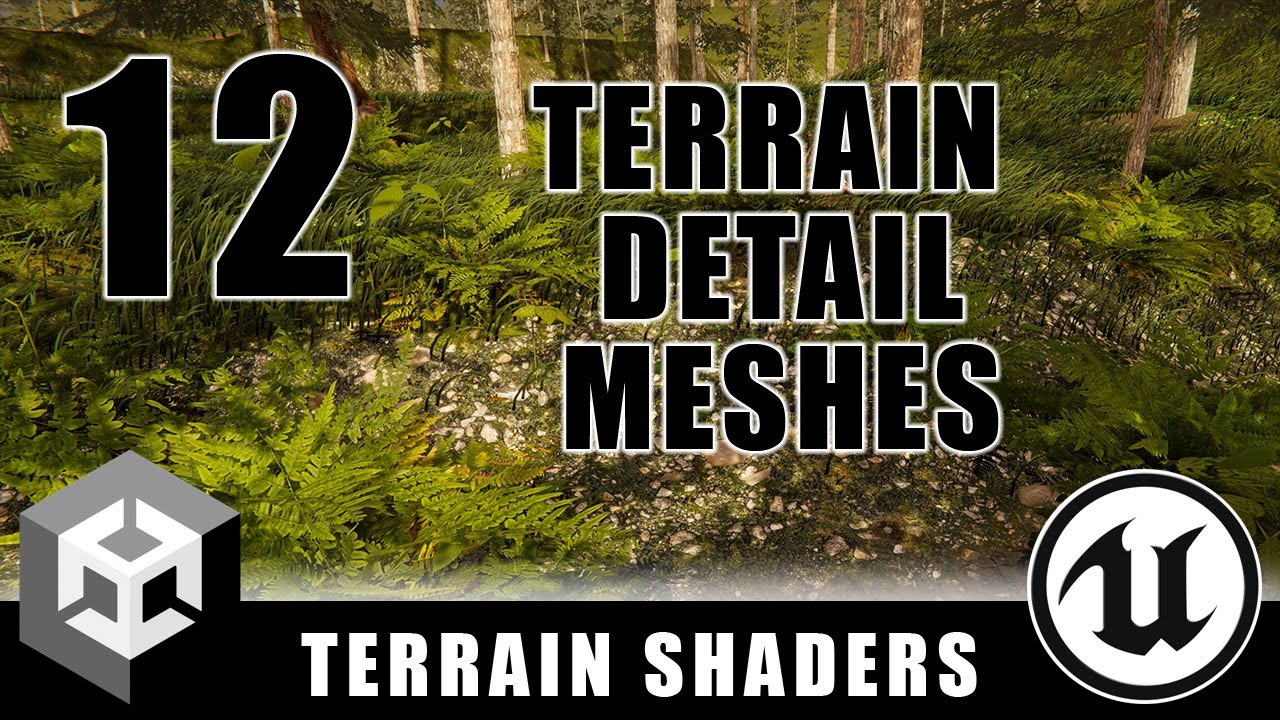
Today, I'm going to show you how to add detail meshes to your terrain in Unreal and Unity. Let's go! Alright, so this scene is a great example of what I'm going to show today. There are thousands of blades of grass, ferns, pebbles, and weeds that make this scene look really complex. It would be an impossible task if I had to place all of these meshes individually by hand, but luckily, Unreal and Unity both have tools that make adding and managing these terrain detail meshes easy, as well as cheaper to render. So today, I'm going to show you the tools in Unreal and Unity for adding these detail meshes. And we'll start out in Unity and then switch over to Unreal in a minute. The first thing that we need is some detail meshes to add to our terrain. And of course, you're always welcome to use your own meshes. But for this tutorial, we're going to use some simple meshes that come with Unity. So we're going to come up here under the Windows menu and select Package Management, Package Manager. And then I'm going to select the Shader Graph package and switch to the Samples tab. And then if I scroll down here, you'll find... So there's a whole bunch of samples that are available here. But if I scroll down, you'll find this sample called Production Ready Shaders. and I can just hit the import button here. I've already done it, so it's already imported, but if you hit the import button, it'll bring these assets into your project. And notice here that it says that it includes shaders for rocks, decals, water, terrain details, and that's the bit that we're going to be using today. So once you import those assets, you can come over here to your project and under samples shader graph your version number production ready shaders environment you'll find this details folder and here we can find a bunch of different assets for terrain details we have clover ferns grass nettle and pebbles so five different types of terrain detail. Let's go ahead and look at Clover here for a minute. So we have this FBX file that has a mesh associated with it. And if we select this mesh and we look at it in our previewer over here, you can see that this mesh is about as simple as it can possibly be. It only has 88 triangles and it's basically just little squares for each of the Clover leaves and then one polygon consisting of two triangles for each of the stems. It's as basic as it can possibly be. And the reason for that is that these meshes are going to get copied over and over and over. And you might have hundreds or even thousands of them applied to your terrain. So when you're making these meshes, you want to make them as simple as they can possibly be. so you can see there's our geometry and if we select our fbx prefab file here this is what it looks like with the material applied okay so and then we've got meshes for ferns you can see our ferns there and we've got meshes for grass and the grass is just an individual blade so we have one blade of grass and we have three of them and I'll talk about the reason why there are three in a minute. Then we have nettle. This is just kind of like a small leafy weed and then we have pebbles and these are just little stones that are like I said again just as simple as they can possibly be. They have to have cheap meshes and really cheap shaders because they're going to get duplicated all over our terrain. All right, well let's go ahead and look at the tools that we're going to use to duplicate these and spread them and paint them onto our landscape. So I'm just going to switch over to our other test scene here. It's called Terrain Basics. And so the first thing that we need to do is select our terrain, and then we'll set or we'll pick this tab here called paint details and I'm going to scroll down the brushes section here is exactly the same as what I described last week for painting terrain height and painting terrain materials so you can select the shape of your brush you can set the size of your brush the opacity and the target strength. Now if we scroll down here there's this no detail objects defined box here and what this means is we haven't set up any meshes to be able to paint on our terrain yet. So we need to hit this edit details box or button and I'm going to pick add detail mesh and that's going to bring up this window here which is going to allow me to pick what mesh I want to paint on my terrain and then set a bunch of settings. So let's go ahead and do our clover first. I'm just going to type clover and there's our clover mesh. So now our clover mesh is assigned as a detail on our terrain and let's go ahead and fill in these settings. This first one is called align to ground percent and what that means is once my mesh is applied to my terrain if the terrain is sloped is it going to try to maintain its up direction or is it going to follow the slope of the terrain if i set this to 100 that means that no matter how the terrain is facing it's always going to align itself to the terrain but if i set it to zero this means that the mesh is always going to try to stay up regardless of the orientation of the terrain. And for my Clover, I want it to be about half. So I want it to take about half of the alignment of the terrain and then the other half, it's kind of going to be a nice blend between trying to maintain its upward positioning. All right, these next settings here are for how large my objects is going to be. And because I have a min and a max width and height, it means that my object can have, like every instance of the object can have a slightly different size. So what I'm going to do is I'm going to keep my min width and height at one, but I'm going to set the maximum to three, which means every time that one of these objects is added to the terrain, it's going to be somewhere between one and three. So it'll have kind of this variation in size per instance. And then the other thing that I'm going to do is for density, I'm going to put 0.9. And then I want to make sure that use GPU instancing and effect by density scale are both checked. Use GPU instancing is going to improve your performance significantly because it's going to make instances on the GPU. And we've talked about this previously on the channel, where when communication happens between the CPU and the GPU, it's only sending one copy of the mesh from the CPU to the GPU, but then that copy is instanced or copied all over on the GPU, and it's able to speed it up because of that. And then this setting here, this means that the player's quality settings will be able to affect how dense this particular mesh is when it's applied. So the density can change depending on if you set your terrain to high quality or medium or low. So we're going to keep that checked. All right, so now I can just click the add button. And you can see that this new box here has been added for Clover. And if I select Clover and I paint on my terrain, now you can see that my Clover is getting added. And I can hit Control-Z if I want to get rid of it. I can just kind of brush onto the terrain and paint it. And if I hold Shift and paint, I can erase it. So this makes it really easy for me to control where on my terrain the clover is being applied. So I can just paint it on and I can erase it and I can control exactly where the clovers is being applied. Now, one thing that I might want to do is just kind of make up some rules for myself, like this mossy material here is where my clover is going to go. So wherever I've painted the mossy material, now I can paint the clover in those areas, and the clover will be added. All right, well, I'm just going to go through and add a bunch more of these, so we'll have a little bit more to play with and I'll be back in just a second. Okay I went ahead and added pebbles, nettle, fern A, fern B, and fern C and let's go ahead and take a look at the settings that I've used. So I'm going to hit edit details here and pick edit. So for pebbles I've set them to align to the ground 100%. I've set their min width and height to 0.6 and their max to two. So there's a little bit of a range there. And I've also set their density to 0.4. For nettle, I've set its aligned to ground to 20%. So it's mostly going to be trying to point up and not stay aligned to the terrain. And then I've set its min width and min height to 0.5 and its max to three. So there's a little bit broader range of different sizes of nettle there. And then I set its density to 0.75. And then for the ferns I set their aligned to ground to 50 their min width and height to 0 and their max width and height to 3 and their density to 1 So now what I can do is, like, I can take my ferns, for example, and let's see. Let's put some ferns over here. I can just kind of click and drag. You can see I'm painting the ferns. That's fern A. Then I can paint some Fern B and some Fern C. And the reason that there are three of those is just so that there's a little bit of variation in their appearance. But you can see that every time it stamps a fern down, it's making them a slightly different size and a different rotation. And just creating some variation so that not every fern plant looks exactly the same. Okay, now there's something really, really important that I need to cover before we go on. As I back away here, you can see that my plants are slowly fading out. And in fact, let's go ahead and switch to a wireframe on our terrain. You can see that there are my ferns and there are my clovers. And as I back away, can you see how they're popping out like that? The reason that they're popping out like that is because of a very important setting on the terrain here. I'm going to switch to the terrain settings tab. And I'm going to come down here to the tree and detail objects section. And I want to set this value here for detailed distance. This is a really important setting for controlling the performance of your terrain. Let's say if I set this detail distance to something like 200, and then I back away, you can see that my ferns are remaining there on the terrain. They're not going away. And I can just get really far away here. And here's the point where they start popping out. Now, notice how far away I am. if I set this to render so we're no longer in wireframe, I can't see those meshes on my terrain. They're not visible, and they kind of come in and they're visible at about this point. But again, if I switch to wireframe, they're still there and they're still rendering, even though they're not visible. Now, the reason they're not visible is there are two different kinds of ceasing to draw or stopping to draw. There's this setting here, the detailed distance, and it's set to 200. But then there's also a setting on the material for the ferns. So let's take a look at that. If I pick my fern material and we come over here, you can see that there's this distance fade value, and I have distance fade start and distance fade end. So I have these values exposed here where the ferns are going to fade out as they're rendering. You can see they're doing that. They're going to fade out as they're rendering, even though... So the setting that I have on the terrain is how far the mesh is rendering. And the setting that I have on the material is how far the material is rendering. So those two settings need to be in sync with each other. And they need to be as close to the camera as I can get away with. So here I should set my detail distance. I want to set this to 28. and then I want these to fade out as I move away so that when I set this to wireframe, they're popping out sooner. And the reason that I want to get rid of these sooner is just so that I'm not rendering these really detailed, dense meshes really far off into the distance. The further into the distance I'm rendering, the thicker they're going to be because, you know as you're looking out this way you're going to see a lot of those so again I want to set this detail distance value as close to the camera as I can and then I want to set up the material so that instead of popping out these are going to fade out let's take a look at the material for the clover you can see that in this material I'm using this node called distance mask and I have a setting for clip distance and clip offset. If I look at the defaults for these settings, the clip offset is 15, so about 15 meters away from the camera, it starts fading out, and then the clip distance is set to 30, so at 30 meters, it's going to be completely faded. And so I've got those settings tuned so that it fades out before it pops out. All right, so that's fairly important to do to control how far away from the camera these objects are rendering. and it needs to be done both in the pixel shader of the mesh and also here the detail distance. And both of these settings need to be set as low as you can so that you can control how many of these meshes are drawing and how far away they're drawing. All right, well, let's go ahead and paint some more of these things. I've got my pebbles here. I can click and drag and add pebbles to my terrain. That's kind of nice looking. I can add nettle to my terrain. So these are the little sort of broadleaf weeds. And I can add more clover to my terrain. And I can add ferns. So you can see here, it's really easy to just quickly add these meshes to your terrain. You just kind of click and drag and paint them on. and like I said a few minutes ago you want to set up some rules for yourself so that the meshes are associated with certain slopes like you might want to put more pebbles on slopes you might want to put clovers around trees but you want to come up with these rules for yourself and then follow them as you're painting so there's kind of a logic to where the various types of detail meshes grow. All right, now you might notice that I haven't added any grass to my terrain yet, so let's do that together. We're going to add the grass next, and I have three different grass meshes. I'm going to select my grass folder here, and you can see that I have three different grass meshes, and each of them has its own material. And the reason that I've split them into three different meshes with three different materials is because I have different distances for each of them. So this one is clipping at five. I'm sorry, this one is clipping at 10. This one's clipping at 15. And then this one's clipping at 28. And so what I'm going to do is add these three meshes to my terrain. And then what you'll see is that if I only had one grass mesh, all of the grass would fade out at the same time. But because I have three, they fade out at three different times, and it makes the fading a little bit less noticeable. So I'm going to go ahead and add our grass meshes here, and I'll be right back. Okay, I've added my three grass meshes, one, two, and three. And if we take a look at our settings here, you can see I've aligned to ground 18%. The min width and height is 0.2 and the max width and height is 1.4. And then I've set my detail density to 0.1. And I did that for each of the three meshes. And now what I can do, I'll just come over here and paint a patch of grass. So there's a bunch of blades of grass there. and that's the first grass mesh. Now I'll grab the second grass mesh and paint it down, and then the same with the third grass mesh. And adding these three different grass meshes makes it so that I can have some really nice dense grass, but then as I zoom out, the meshes will fade out at three different levels or at three different distances so that the fading out is a little bit less noticeable. Now, one thing that you might notice is as I get further away, the last grass mesh pops out. It's doing popping instead of fading. There it goes. You can see it popping there. And that's because that mesh, I've actually disabled alpha clipping. So it's an opaque material. It doesn't have any alpha clipping. And that's just to save on performance. So if this pattern here that it's popping out in looked too bad, I could go back into that material and re-enable alpha testing so that it would fade out. But you can see that because I have, let me just maximize this, because I have the grass set up as three separate materials, I can control distinct distances for each set so that it's a little bit less noticeable when it's fading out. all right so that's how you add detail meshes to your to your terrain we've added these little clover meshes uh we've added these ferns we've added these nettle meshes uh and one other thing that i want to point out is like these fern meshes are so small that i've disabled shadows because the shadows you just can't even see them but you can see that there are shadows on these ferns and there are shadows on the nettle. But then as I zoom out, the shadows kind of go away as the meshes are fading out. And for the grass, you can see that one of the three meshes has shadows enabled, but the other two don't. And all of these things are just to save on performance because I want to make these meshes as fast to render as I can because they are they getting duplicated so many times all right let go ahead and save this scene and we switch back over to the sample scene that we had from before I wanted to just show you this again this is where I've spent some time painting the ferns where I wanted the ferns to go and kind of painting pebbles and and the clover. What I've done is I've painted grass everywhere except for right around the trees. And there I've kind of thinned and cleared out the grass and painted some more clover in those areas. And then I've just kind of scattered the ferns around a little bit. But you can see that very quickly with just a little bit of painting effort, I'm able to get a scene that looks really, really detailed just by adding these simple grass, fern, nettle, clover, and pebble meshes, and I can get something that looks fairly dense and realistic looking by using these painting tools to be able to apply these meshes really quickly to the terrain. All right, let's switch over to Unreal, and I'll show you how to do something similar in that engine as well. Alright, so here we are in Unreal. And just like we did in Unity, I'm going to show you the tools to enable us to add lots of detail meshes to our landscape. Here you can see a simple environment that I built. And you can see that it's a nice landscape that we're working on, but it also has lots of ferns and grass and rocks and other plants that are really bringing things to life. In fact, if I come up here under our visibility menu and we just turn off all of these details, you can see that like almost everything that was on our terrain was being applied with Unreal's built-in foliage system. And when we turn it off, our landscape looks rather barren. So let's just go ahead and turn all of that back on. So that foliage is really adding a lot to our landscape with the ferns and the grass and the rocks and the other plants. So just like we did in Unity, I'm going to show you how to add all of these details. The first thing that we need to do is find some meshes. And the meshes that I've found that I've added to this environment are from Megascans. Megascans, they're from Quixel Bridge. So if I come up here under our Quick Add menu, I can just pick Quixel Bridge, and I've opened Quixel Bridge in a new tab. So we wanted some rocks, we wanted some ferns, and we wanted some grass. So if I come here to the 3D Plants category and then click on Ferns, you can see there's a bunch of different options here. and I used this one just called Fern and I used this one that's called Bracken Fern. So I just selected these and then I hit the download button and then once I found what I wanted I also imported some rocks and some other assets as well. So back in my project here under the content drawer you can see there's this folder called Megascans and then I've got 3D plants and then here's our bracken fern and then our fern 00. So you can see these objects here are imported and added. And the nice thing about this set here is that we have a whole bunch of different fern variations but they're all using the same texture set. So they all share these same textures. Same with the bracken fern. They all share these same textures, which makes them a little bit more efficient. Okay, so I downloaded some ferns. I downloaded some rocks. I downloaded some grass. The next thing that I did is I brought all of these objects into my level, and I arranged them over here in this area that I like to call a construction yard. It's kind of where I've pulled all these assets in, and now I want to kind of apply them and see them all together in one place. And so the reason that I do this is to see them all together, to make sure that they're the right size and scale, and also just to make sure that they work well with each other. I can lay out each individual asset and just kind of check them over and make sure that these assets are what I want and that they're going to work. So you can see here they are added to my scene. I've got all these scatter objects placed just kind of one at a time into the level. And that's really easy to do. you can just grab one of these and drag and drop it in to place it just like that. Okay, now I've added these one at a time manually just by dragging and dropping them, but that is not a good idea for actually applying them to the level like this because there are hundreds and maybe even thousands of these objects that I've added, and it's just not practical to drag and drop them and try to move and place them one at a time. So the next thing that I want to do is show you the tools that are built into Unreal that allow you to very quickly populate your landscape with these detail meshes. So I'm going to come up here under our selection mode, and I'm going to pick foliage. Now, this is kind of a funny name for this type of object because not all of the objects we're adding to the landscape are plants. You know, we're also adding rocks and other objects like that. But the system that they've made is just called foliage. So I'm going to select this and it brings up this new foliage panel. and the first thing that we need to do before we can use this is add all of our foliage in this section here in our list. So this is our collection of objects that are available to be assigned to the terrain and if I click on this little gear icon here you can see I can display these objects as a list, or I can display them as thumbnails. And when there's thumbnails, I can control the size of the thumbnail to get as many on the screen at a time as I need. And so when I want to add these meshes, I can just hit this plus foliage button here, and then I can scroll to a mesh that I want to add and select it. And once it does, it gets added to the library. And then I need to set up a series of settings for each of the meshes that control how they get added to the landscape. So let's take a look at that really quick. I'm just going to select this fern here. And then we're going to scroll our list down. And there are a lot of settings here. But there are two main sections that I want you to look at. I want you to look at painting, and I want you to look at placement. So the settings that are associated with painting, first of all, we have density, and that controls, like, when I paint with my brush, it controls how many plants are going to be placed within that brush. So here you can see my tooltip says specifies in instances per thousand by a thousand unit each. So it's how many instances are getting placed in a certain area. Okay, then I have scaling. And what this does is it applies some randomness to the size of each individual mesh. So it's going to take the mesh, the size that it is when you import it into Unreal. and it's going to apply a scale that's somewhere, and I've put 0.5 and 1.2 for this particular fern, which means that it's going to get scaled down potentially to half its original size, and then it's going to get scaled up to maybe 1.2 of its original size. So when each instance of that fern gets applied, it's going to be somewhere in the half to 1.2 range of its original size. and what's really nice about that is when you're painting, even if you're painting the same fern over and over, if each of the instances is a different scale, it gives more variety and more interest to the placement of those ferns. Now, speaking of placement, let's scroll down here to the placement section, and there are a bunch of settings here. Z offset is like the height above the terrain, and the pivot point of these objects are at their origin and that's the point that's going to be placed on the terrain and normally you don't want to use z offset here because it's going to make the the objects float above or get sunken into the terrain you'd only want that maybe for rocks you could use it i suppose all right the next setting is align to normal and that is going to align the mesh to the terrain. So if I add objects to the slope here, they're going to be facing the direction of the terrain versus if I have that off, the meshes are always going to be pointing up. And then this align max angle, that's the maximum amount of rotation they're going to receive to align themselves to the terrain. So for objects like plants, plants usually grow straight up and down, maybe with a little bit of tilt. But things like rocks are going to align themselves to the slope of the landscape. So I want to tune these settings to something that's appropriate for these objects. Now for these ferns, I'm saying, hey, I want you to align yourself to the landscape, but only up to 20 degrees. If the landscape is steeper than that, then just stop aligning. All right I got this box checked called Random Yaw And what that means is that the object can be rotated around its up axis So it's going to be rotated around randomly. And then random pitch angle is if the object is leaning down or not. And you can see that for these ferns, I've turned on random rotation. But for pitch angle, I'm only allowing them to pitch maybe 10 degrees in any direction. And the goal of all of these settings is so that each individual object that's placed has a different alignment and a different scale. And it just gives lots of really nice variety. And you can see that here as we look at these objects. You know, they're not lined up and rotated all perfectly matching, but they're randomized and scattered and scaled and rotated differently to give the feeling of kind of complexity and chaos of the natural world. Okay, and then these last two settings here are for where we want to actually paint the objects. and so right here it says we want the objects to be painted when the ground slope is anywhere from flat which is zero all the way up to 80 degrees we're going to allow those to be painted but if it's steeper than 80 then don't apply that and we could change these to allow you know i could i could set this to something like between 45 and 50 so when i paint on flat ground they won't be added they'll only be added on slopes. So I can control where I want these things to be added based on the slope of the landscape. I can also control where I want them to be added based on the altitude or the height of the landscape. And here I've got like a very large min and max and it's basically not limiting where these things are applied at all, but I could limit these to a very specific height or altitude. Let's say I had an object here that was a clump of snow. I could tell it a specific altitude on my mountain where the snow was going to be applied, and if I tried to paint below that altitude it wouldn't get applied. So that's what those settings are for. All right well let's come over here and do some painting and I'll show you how these paint tools work. So I'm just going to come over here in this grassy area and what I'm going to do is select all of the fern objects and what I can do here is just hold shift and click and now for the objects that I want to apply to the terrain, I want to make sure this box is checked because the objects that have checked boxes are the ones that are going to get applied when I paint. So I can click and because I have all these multi-selected, it's going to check all of them at the same time. Okay, now I can come up here and I can oh I'm in single instance mode right now which means when I click it's just going to place one and what I actually want is to be in paint mode so when I'm in paint mode I can control the brush size and right now it's a hundred which means I have kind of a one meter brush here and now you can see like as I click and drag it's going to be painting down all of the meshes that I have checked in my list. So you can see it's adding my fern objects and they're randomly rotated and scaled to add some nice chaos. And it becomes really easy to just click and drag and paint these objects down and I can add them to my landscape really quickly and easily. all right so let's take a look at the single object here i'm going to uncheck my ferns and instead of ferns i'm going to come up here and i'm going to select my rocks and turn these on now i'm going to click and you can see that it's just added one oh look at that so what's happened here is that it it's added each of the rocks that i have checked and they're all kind of in a pile there in one spot. And that's not what I want. And the reason that it's doing that is because this is single instance mode and it's set to all selected. So what it's gonna do here is add every single object that I have selected each time I click. And that's definitely not what I want. So I'm just gonna undo that and I'm gonna drop this down. And instead, I'm gonna pick cycle through selected. And what that's going to do is each time I click, it's going to add a different rock from this list of rock objects that I have selected. And so now I can just kind of go through and quickly add the rocks that I want in this area. And so this tool is good for rocks, and it's good for objects where you just want to place them one at a time and just have one object added. Okay, so I've added all my meshes, and I'm ready to apply them. What I want to do is apply these plants and foliage kind of from largest to smallest. So I'll first go through and add my really large rocks to the landscape. And then I'm going to select my ferns. And I'm going to come in and paint down some ferns. And so I want to add the really large objects first. and then I want to add the medium objects and I want to come in and fill in the small objects kind of in between and the reason that I'm doing that from largest to smallest is is so that I can make sure that there's a nice composition and also if I put in all my smallest objects first there's a very high probability that the large objects that I put in the end will actually cover up the small objects and that's bad because you don't want objects inside other objects to be hidden and so you want to make sure that we add these objects from largest to smallest okay so now i've added my ferns and i'm going to uncheck the ferns and now i'm going to add the grasses so let's just go ahead and add these and i think actually i'm going to add the grass with the single option here and I'm just gonna come through and I can just like quickly click click click to add grasses in here in between the large and medium-sized objects so this is a project of the process of adding these detail meshes to your terrain. And once you're done, you're going to end up with something that looks significantly more realistic and detailed than what you had to begin with. So that's the process. Let's come take a look over here at this area that I've worked on again. you can see that oh and one other thing you you kind of want to set up some rules for yourself for where the the objects might be placed so i have smaller rocks and pebbles kind of in the path of my stream here and then up onto the bank i have my grass placed sort of in this muddy area that's right next to the water i have the ferns kind of painted on the slope that's coming down So you can see I kind of set up some principles or rules for myself for where these things might be applied. And then I followed those rules as I was adding the objects to the scene. Anyway, so that's the tool that Unreal has built in for adding meshes to the terrain. And it makes it a lot more efficient for these meshes to render as well because they're not individually placed objects. They're foliage instances, and like I said, they render much quicker than they would if I were placing them one at a time by hand. Now, one last thing that I want to mention here, and that is in recent versions of Unreal, Unreal has introduced the PCG system, which is the procedural content generation system. And I've heard recently that it might actually be more efficient to use the PCG system for adding these types of meshes rather than the foliage painting system. And I haven't tested that myself. I haven't used the PCG tools very much yet myself. So I need to get in there and test it. but you may want to, if you're building new content in Unreal, in the most recent versions of Unreal, you may want to look into using the PCG system instead of the foliage paint system, but you'd want to test these things and compare to see which of these systems is more efficient for what you're doing. All right, well that's it for today's video. I hope you enjoyed it. we're able to use these really powerful tools in both Unreal and Unity for adding detail meshes to the terrain and the landscape to really bring these systems to life and add tons of detail quickly without too much effort. I hope this was helpful for you. If you have any questions, be sure to put those down in the comments and let me know what you think. have a great week everybody and we'll see you next time